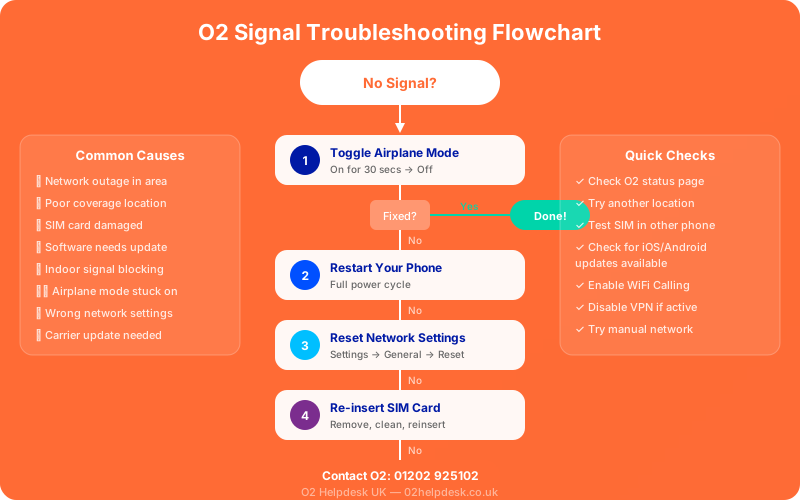
There's nothing more frustrating than reaching for your phone only to discover you have no signal. Whether it's a complete signal blackout, intermittent drops, or poor call quality, O2 signal problems can disrupt your daily life and leave you feeling disconnected.
The good news? Most signal issues can be resolved quickly with the right troubleshooting steps. This guide covers everything from quick fixes you can try right now to more advanced solutions for persistent problems.
Quick Fixes to Try First
Before diving into complex troubleshooting, try these simple solutions that resolve the majority of signal issues:
1. Toggle Airplane Mode
The oldest trick in the book—and it works surprisingly often. This forces your phone to re-establish its connection to O2's network, often resolving temporary glitches.
- Swipe down from the top of your screen (Android) or swipe up from bottom (iPhone)
- Tap the airplane icon to enable Airplane Mode
- Wait 10 seconds
- Tap the airplane icon again to disable
- Wait for your phone to reconnect to the network
2. Restart Your Phone
A simple restart clears temporary software issues and can resolve many connectivity problems. Power off your device completely, wait 30 seconds, then power back on.
3. Check for Network Outages
Before spending time troubleshooting, verify if O2 is experiencing a known outage:
- Visit O2's service status page at status.o2.co.uk
- Check DownDetector for O2 reports
- Ask friends or family on O2 if they're experiencing issues
4. Remove and Reinsert Your SIM Card
A loose or dirty SIM can cause connection problems:
- Power off your phone completely
- Locate your SIM tray (usually on the side of the phone)
- Use the SIM ejector tool to remove the tray
- Check the SIM for visible damage or dirt
- Clean gently with a soft, dry cloth if needed
- Reinsert the SIM firmly and replace the tray
- Power on your phone
Advanced Troubleshooting Steps
If the quick fixes don't work, try these more advanced solutions:
Reset Network Settings
If basic fixes don't work, resetting network settings often resolves deeper issues. This will remove all saved Wi-Fi passwords and Bluetooth pairings, so have your Wi-Fi password handy.
iPhone: Settings > General > Transfer or Reset iPhone > Reset > Reset Network Settings
Android: Settings > General Management > Reset > Reset Network Settings
Check and Update APN Settings
Incorrect APN (Access Point Name) settings can prevent data connectivity. Correct O2 APN settings:
- Name: O2 Internet
- APN: mobile.o2.co.uk
- Username: o2web
- Password: password
- MMSC: http://mmsc.mms.o2.co.uk:8002
- MMS Proxy: 82.132.254.1
- MMS Port: 8080
Understanding Signal Strength Indicators
Your phone's signal bars give you a rough idea of reception quality:
- 4-5 bars: Excellent signal
- 2-3 bars: Good signal
- 1 bar: Weak signal—calls may drop
- No bars / "No Service": No signal available
When to Contact O2
If you've tried all the troubleshooting steps and still have signal issues, it's time to contact O2. They can:
- Check for network issues in your specific area using the O2 coverage checker
- Verify your account status
- Send a replacement SIM if yours is faulty
- Arrange a signal booster if you have persistent home coverage issues
Still Having Signal Issues?
Our O2 technical support specialists can help diagnose complex signal problems and guide you through advanced troubleshooting. You may also want to check your APN settings if you have data connectivity issues, or set up your voicemail so you never miss calls when signal is weak.