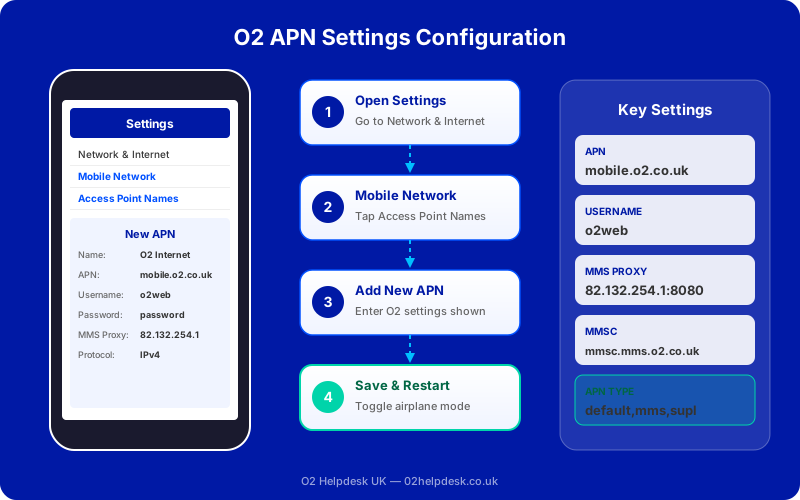
If you're experiencing mobile data issues with your O2 phone, incorrect APN (Access Point Name) settings could be the culprit. This comprehensive guide provides the correct O2 APN settings and step-by-step instructions for configuring them on your device.
What is an APN?
An Access Point Name (APN) is the gateway between your mobile network and the internet. It tells your phone how to connect to O2's data network. Without the correct APN settings, your mobile data won't work properly—or at all.
Correct O2 APN Settings
Here are the official O2 APN settings you need:
| Setting | Value |
|---|---|
| Name | O2 Internet |
| APN | mobile.o2.co.uk |
| Username | o2web |
| Password | password |
| MMSC | http://mmsc.mms.o2.co.uk:8002 |
| MMS Proxy | 82.132.254.1 |
| MMS Port | 8080 |
| APN Type | default,mms,supl |
| APN Protocol | IPv4 |
How to Configure APN Settings on Android
Step-by-Step Instructions
- Open Settings on your Android phone
- Tap Network & Internet (or Connections on Samsung)
- Tap Mobile Network (or Mobile Networks)
- Tap Access Point Names or APNs
- Tap the + icon (or menu button) to add a new APN
- Enter the O2 APN settings from the table above
- Tap Save
- Select the new O2 APN as your active APN
- Restart your phone
How to Configure APN Settings on iPhone
Step-by-Step Instructions
- Open Settings on your iPhone
- Tap Mobile Data (or Cellular)
- Tap Mobile Data Network (or Cellular Data Network)
- Under Mobile Data section, enter:
- APN: mobile.o2.co.uk
- Username: o2web
- Password: password
- Under MMS section, enter:
- APN: mobile.o2.co.uk
- Username: o2web
- Password: password
- MMSC: http://mmsc.mms.o2.co.uk:8002
- MMS Proxy: 82.132.254.1:8080
- Press the Home button or swipe up to exit
- Restart your iPhone
When to Reset Your APN Settings
You should check or reset your APN settings if you're experiencing:
- Mobile data not working despite having signal
- Slow data speeds
- Unable to send or receive MMS messages
- Data works on Wi-Fi but not on mobile network
- Recently switched to O2 from another network
How to Reset APN to Default
Android
- Go to Settings > Network & Internet > Mobile Network > Access Point Names
- Tap the menu button (three dots)
- Select Reset to default
- Restart your phone
iPhone
iPhone doesn't have a direct "reset APN" option. To reset:
- Go to Settings > General > Transfer or Reset iPhone
- Tap Reset
- Select Reset Network Settings
- Enter your passcode if prompted
- Confirm the reset
- Your iPhone will restart with default network settings
Troubleshooting APN Issues
Data Still Not Working After APN Configuration
If you've entered the correct APN settings but mobile data still doesn't work:
- Double-check all settings are entered correctly (typos are common)
- Ensure mobile data is enabled in your phone settings
- Check you haven't exceeded your data allowance
- Try toggling Airplane Mode on and off
- Restart your phone
- Contact O2 to verify there are no account issues. You can also check the O2 coverage checker to confirm network availability in your area
- If you also have signal problems, see our guide to fixing O2 signal issues
APN issues can sometimes appear after updating your phone's software or after inserting a new SIM card. If you recently changed your O2 plan, your data settings may also need updating. For help understanding your current plan and charges, check our O2 bill explained guide.
Still Having Data Issues?
Our technical support team can help diagnose APN problems and guide you through advanced troubleshooting steps.