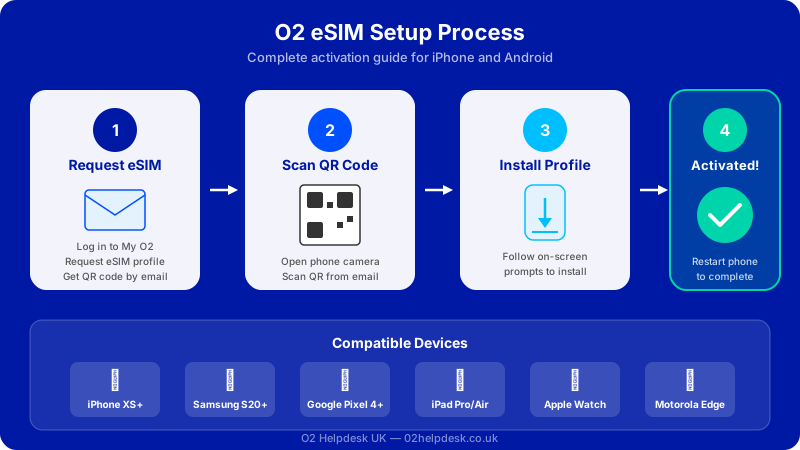
An eSIM (embedded SIM) is a digital SIM that is built directly into your phone, removing the need for a physical nano-SIM card. O2 now supports eSIM technology across a wide range of devices, giving you more flexibility in how you manage your mobile plan. Whether you are setting up a new O2 contract, switching from a physical SIM, or adding a second line to your phone, this guide covers everything you need to know.
The eSIM works exactly like a traditional SIM card in terms of connecting you to O2's network for calls, texts, and data. The difference is entirely in how it is provisioned: instead of inserting a plastic card, you scan a QR code or use your phone's settings to download the eSIM profile directly onto your device.
What Is an eSIM and How Does It Differ from a Physical SIM?
A physical SIM card is a small chip that you insert into your phone's SIM tray. It stores your subscriber identity and connects you to your network. An eSIM performs the same function but is embedded directly into your phone's hardware. You activate it digitally rather than physically inserting anything.
| Feature | Physical SIM | eSIM |
|---|---|---|
| Installation | Insert into SIM tray | Download via QR code or app |
| Switching networks | Swap physical card | Download new profile |
| Dual SIM capability | Requires two SIM slots | Use with physical SIM for dual SIM |
| Risk of damage | Can be lost or damaged | Built into device, cannot be lost |
| Activation speed | Wait for delivery | Instant activation |
| Travel flexibility | Need local SIM card | Add travel eSIM alongside main line |
O2 eSIM Compatible Devices
Not all phones support eSIM technology. Before ordering an O2 eSIM, check that your device is compatible. O2 supports eSIM on the following devices:
Apple iPhone
- iPhone XR, iPhone XS, iPhone XS Max
- iPhone 11, iPhone 11 Pro, iPhone 11 Pro Max
- iPhone SE (2nd and 3rd generation)
- iPhone 12, 12 Mini, 12 Pro, 12 Pro Max
- iPhone 13, 13 Mini, 13 Pro, 13 Pro Max
- iPhone 14, 14 Plus, 14 Pro, 14 Pro Max
- iPhone 15, 15 Plus, 15 Pro, 15 Pro Max
- iPhone 16, 16 Plus, 16 Pro, 16 Pro Max
Samsung Galaxy
- Samsung Galaxy S20, S20+, S20 Ultra and later S series
- Samsung Galaxy S21, S22, S23, S24, S25 series
- Samsung Galaxy Z Fold series (Fold 2 and later)
- Samsung Galaxy Z Flip series (Flip 3 and later)
- Samsung Galaxy Note 20, Note 20 Ultra
Google Pixel
- Google Pixel 3a and later models
- Google Pixel 6, 6 Pro, 7, 7 Pro, 8, 8 Pro, 9, 9 Pro
How to Order an O2 eSIM
For New O2 Customers
When you sign up for a new O2 plan online or in-store, you can choose an eSIM instead of a physical SIM. During the checkout process, select the eSIM option when prompted. O2 will send you a QR code via email that you use to activate your eSIM profile on your device.
For Existing O2 Customers
If you are already on O2 and want to switch from a physical SIM to an eSIM, you can do so through the My O2 app or by contacting O2 customer service. The process involves O2 generating a new eSIM profile and deactivating your physical SIM. Your phone number and plan details remain the same.
- Open the My O2 app and log in
- Navigate to your device or SIM settings
- Select "Switch to eSIM" or "Order eSIM"
- Follow the on-screen instructions
- O2 will send you a QR code or activation details
Step-by-Step: Activating an O2 eSIM on iPhone
- Make sure your iPhone is connected to WiFi (you need an internet connection to download the eSIM profile)
- Go to Settings then Mobile Data (or Cellular)
- Tap Add eSIM or Add Mobile Plan
- Select Use QR Code
- Point your camera at the QR code O2 sent you
- Your iPhone will detect the eSIM profile and prompt you to confirm
- Tap Continue and wait for the profile to download
- Choose a label for your new plan (e.g., "O2" or "Personal")
- Select your default line for calls, texts, and data
- Your eSIM should now be active. Check the signal bars in the top corner
Step-by-Step: Activating an O2 eSIM on Android
- Connect your phone to WiFi
- Go to Settings then Connections (or Network & Internet)
- Tap SIM Manager or SIM Cards
- Select Add eSIM or Add Mobile Plan
- Choose Scan QR code
- Point your camera at the QR code from O2
- Confirm the download when prompted
- Wait for the eSIM profile to install (this may take a few minutes)
- Once installed, enable the eSIM in your SIM Manager
- Set it as your preferred SIM for calls, texts, and data if needed
Transferring from Physical SIM to eSIM on O2
If you are currently using a physical O2 SIM and want to switch to eSIM, the process is straightforward but requires a few important steps:
- Request the switch: Contact O2 through the My O2 app, by calling 202 from your O2 phone, or by visiting an O2 store
- Receive your QR code: O2 will generate a new eSIM profile and send you a QR code via email
- Deactivate your physical SIM: Once you scan the QR code and activate the eSIM, your physical SIM will be automatically deactivated
- Remove the physical SIM: You can remove the old SIM card from your phone. The eSIM now handles your connection
Using Dual SIM with O2 eSIM
One of the biggest advantages of eSIM technology is the ability to use two phone numbers on one device. Most modern smartphones support dual SIM functionality, allowing you to have a physical SIM and an eSIM active at the same time.
Common Dual SIM Scenarios
- Personal and work numbers: Keep your personal O2 number on the eSIM and a work number on a physical SIM (or vice versa)
- UK and travel: Keep your O2 eSIM for your UK number and add a local physical SIM when travelling abroad to save on roaming charges
- Data and calls: Use one SIM for calls and another for data if one network has better coverage in your area
When using dual SIM, you can choose which line to use for outgoing calls, texts, and data. Your phone will receive calls and texts on both numbers simultaneously. For more about using your O2 phone abroad, see our O2 roaming guide.
Troubleshooting Common O2 eSIM Issues
eSIM Activation Failed
If your eSIM fails to activate, try the following:
- Check your WiFi connection is stable and working
- Restart your phone and try scanning the QR code again
- Make sure your device software is fully up to date
- Check that your device is eSIM compatible (see the list above)
- Contact O2 to request a new QR code, as the original may have expired
No Signal After eSIM Activation
If your eSIM is activated but you have no signal:
- Toggle airplane mode on and off to force a network reconnection
- Check that the eSIM is enabled in your phone's SIM settings
- Ensure O2 is selected as your network (Settings, Mobile Data, Network Selection)
- Verify your APN settings are correct for O2
- If the problem persists, check for O2 network outages in your area
QR Code Not Scanning
If your phone cannot scan the eSIM QR code:
- Make sure you are scanning from the correct menu (Settings, not the camera app)
- Ensure the QR code is displayed clearly without glare or distortion
- Try zooming in on the QR code if it is displayed on a small screen
- Some phones allow manual entry of the activation code. Look for "Enter details manually" option
Cannot Remove or Reset eSIM
If you need to remove your eSIM profile (for example, when selling your phone):
- iPhone: Go to Settings, Mobile Data, select the eSIM plan, and tap "Remove Mobile Plan"
- Android: Go to Settings, Connections, SIM Manager, select the eSIM, and tap "Remove"
Frequently Asked Questions
Is there a charge for an O2 eSIM?
No, O2 does not charge extra for an eSIM. It is included as part of your plan at no additional cost. The eSIM simply replaces the physical SIM card.
Can I switch back to a physical SIM from eSIM?
Yes, you can switch back at any time. Contact O2 to order a replacement physical SIM card. Once it arrives and is activated, your eSIM profile will be deactivated.
What happens to my eSIM if I get a new phone?
You will need to transfer your eSIM to your new device. Contact O2 to get a new QR code, or use eSIM Quick Transfer on compatible iPhones. Your old eSIM profile should be removed from the previous device. If you are planning an upgrade, check your O2 upgrade eligibility first.
Can I use eSIM with O2 Pay As You Go?
Yes, O2 supports eSIM on both pay monthly and pay as you go plans. The activation process is the same regardless of your plan type.
Does eSIM work abroad?
Yes, your O2 eSIM works abroad just like a physical SIM would. Standard roaming charges apply based on your plan and the country you are visiting.
Can I store multiple eSIM profiles on my phone?
Most modern phones can store multiple eSIM profiles, but typically only one or two can be active at a time. This is useful if you travel frequently and want to keep different network profiles saved on your device.
Will my phone number change when I switch to eSIM?
No, your phone number stays exactly the same. Switching to eSIM only changes the type of SIM, not your number or plan details.
Need Help Setting Up Your O2 eSIM?
Our O2 technical specialists can guide you through the eSIM activation process, troubleshoot any issues, and help you make the most of dual SIM functionality. If you are having signal problems after activation, check our signal troubleshooting guide or review your APN settings.